



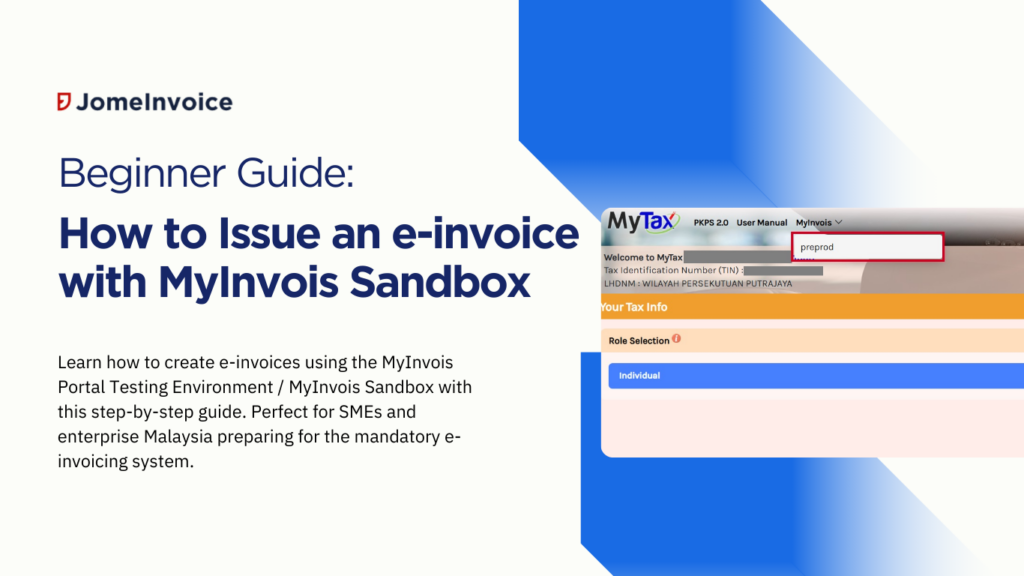
With Malaysia’s gradual implementation of mandatory e-invoicing, businesses must become familiar with platforms like the MyInvois portal. Whether you’re new to e-invoicing or need a refresher, this guide will take you through the entire process step-by-step.
What is MyInvois Portal Testing Environment: Myinvois Sandbox?
The MyInvois portal offers a testing environment, known as the MyInvois Sandbox, which allows companies, including SMEs and large enterprise Malaysia to practice and test e-invoicing before moving to live transactions. This environment is particularly useful for businesses that want to ensure compatibility between their systems and the MyInvois portal.
The Sandbox was made available on April 10, 2024, for companies pioneering e-invoicing and was extended to all other businesses from April 22, 2024. It allows businesses to test the integration through the Application Programming Interface (API) or manual entry. By using this environment, you can simulate real invoicing scenarios, catch potential errors, and get familiar with the system without impacting your actual data.
To access the sandbox, businesses must apply for a Client ID and Secret Key from LHDN by providing details such as their Tax Identification Number (TIN), business registration number, company name, and ERP system used. The Sandbox environment also supports testing for both version 1.0 and 1.1 of the invoicing software.
For more technical guidance, companies can refer to the e-Invois Software Development Kit (SDK) and frequently asked questions (FAQs) provided by LHDN.
This testing phase is crucial for businesses to ensure they are fully prepared for Malaysia’s phased rollout of mandatory e-invoicing(MAICSA)(thesun.my)(Goldsoft).
Why Use the MyInvois Sandbox / MyInvois Portal Testing Environment?
The MyInvois Sandbox / MyInvois Portal Testing Environment is essential for businesses transitioning to Malaysia’s mandatory e-invoicing system. Here’s why it should be used:
- Error Reduction and Familiarity: The Sandbox allows businesses to simulate e-invoicing before making it official. By practicing in this controlled environment, companies can identify and resolve errors without affecting real transactions. This preparation leads to smoother, error-free invoicing once live e-invoicing is in effect(
MAICSA)(Malay Mail ). - System Integration Testing: Companies can test the integration of their existing systems (e.g., ERP or POS) with the MyInvois portal via the API. This ensures that their invoicing processes work seamlessly when live(Malay Mail )(Goldsoft).
- Training and Onboarding: The Sandbox provides a training platform for employees. It helps teams become confident with the MyInvois portal, ensuring that they can handle e-invoicing without disruptions(MAICSA).
Who Should Use the MyInvois Sandbox?
- Businesses with Large Transaction Volumes: Large enterprise Malaysia with substantial invoicing needs, especially those in industries like retail, manufacturing, and services, should utilize the Sandbox to ensure their systems are compatible with the API, which is ideal for managing high transaction volumes efficiently(thesun.my).
- Small and Medium Enterprises (SMEs): While larger corporations may lead the transition, SMEs should also use the Sandbox. E-invoicing will eventually be mandatory for all businesses, and preparing early can prevent compliance issues(Malay Mail ).
- Service Providers and Software Developers: Companies offering ERP systems or accounting solutions need to use the Sandbox to ensure their software integrates with the MyInvois portal. This is critical for enabling clients to generate compliant e-invoices(Goldsoft).
Overall, the MyInvois Sandbox / MyInvois Portal Testing Environment is a vital tool for ensuring a smooth transition to Malaysia’s e-invoicing era. It helps reduce errors, prepares staff, and ensures system compatibility, benefiting all businesses—large and small.
Step 1: Login and Access the e-invoicing Platform
To start using the MyInvois Portal Testing Environment, follow these steps:
- Visit the Portal: Go to preprod-mytax.hasil.gov.my.
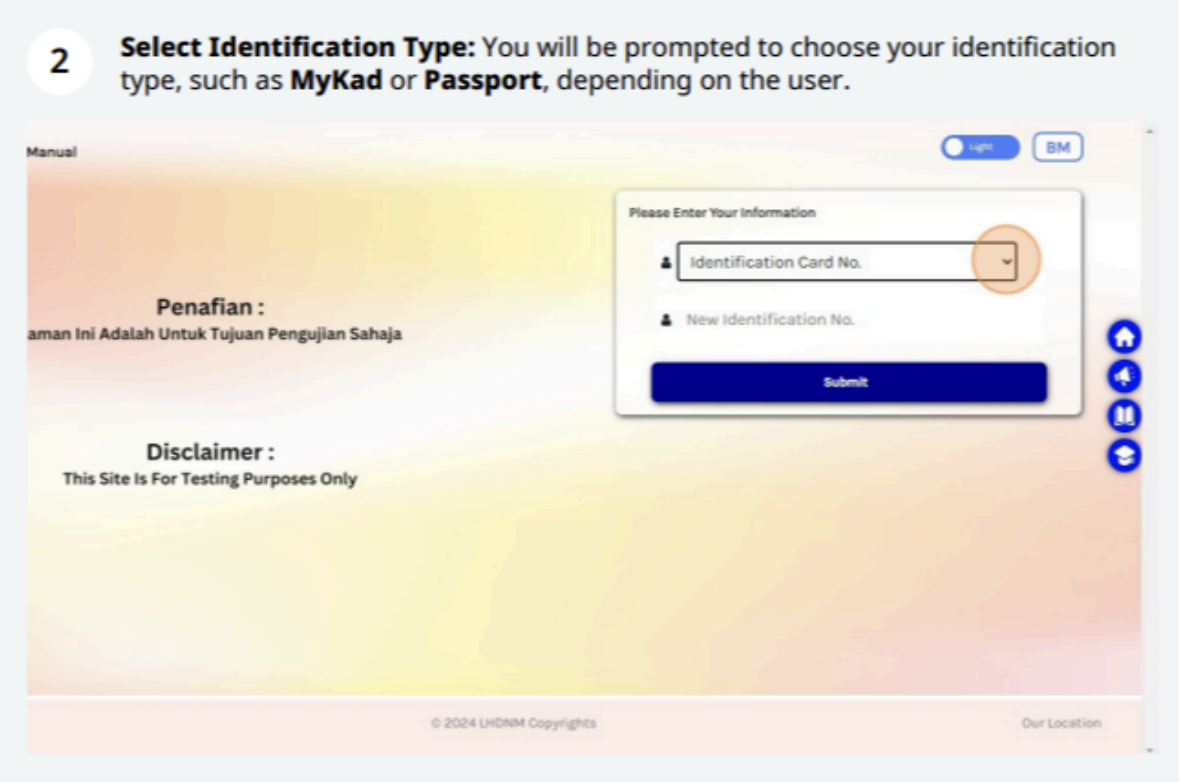
- Select Identification Type: You will be prompted to choose your identification type, such as MyKad or Passport, depending on the user.
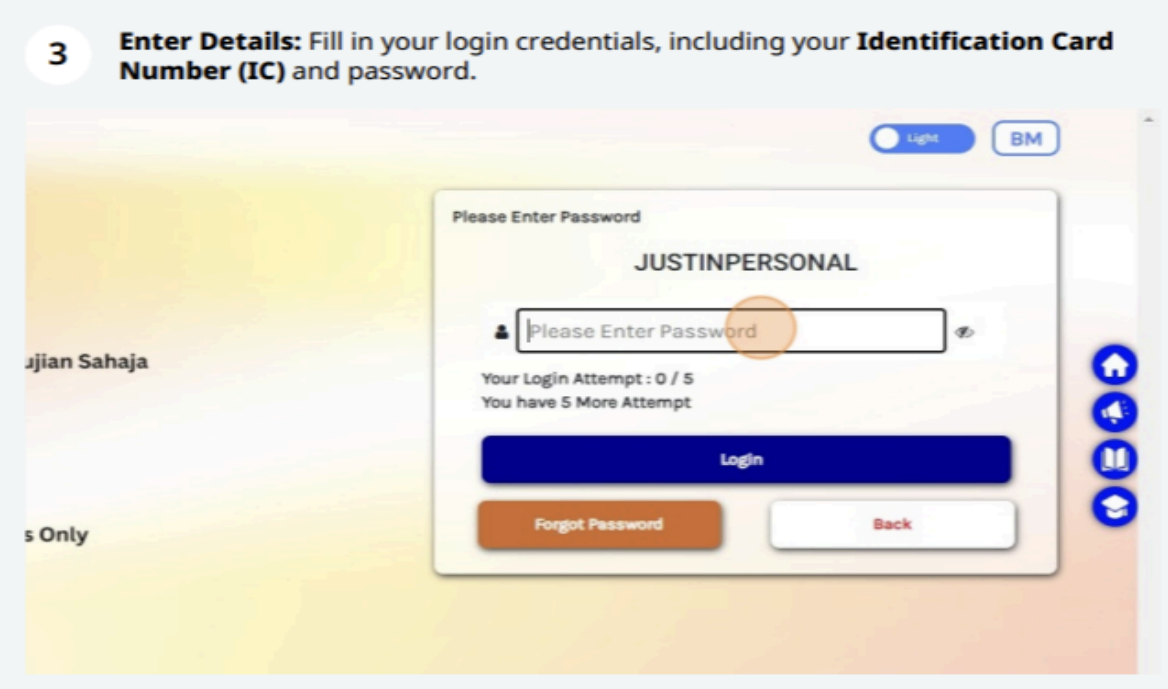
- Enter Details: Fill in your login credentials, including your Tax Identification Number (TIN) and password.
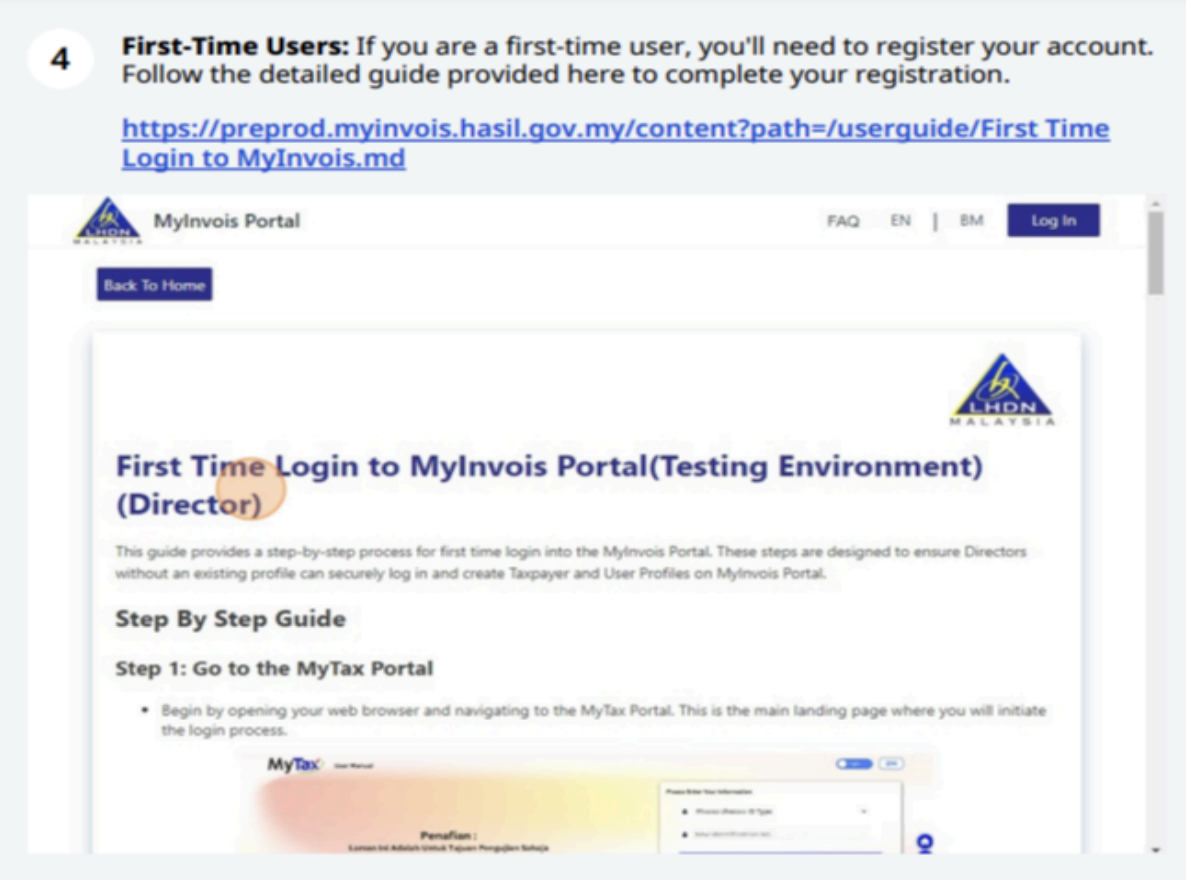
- First-Time Users: If you are a first-time user, you’ll need to register your account. Follow the detailed guide provided here to complete your registration.
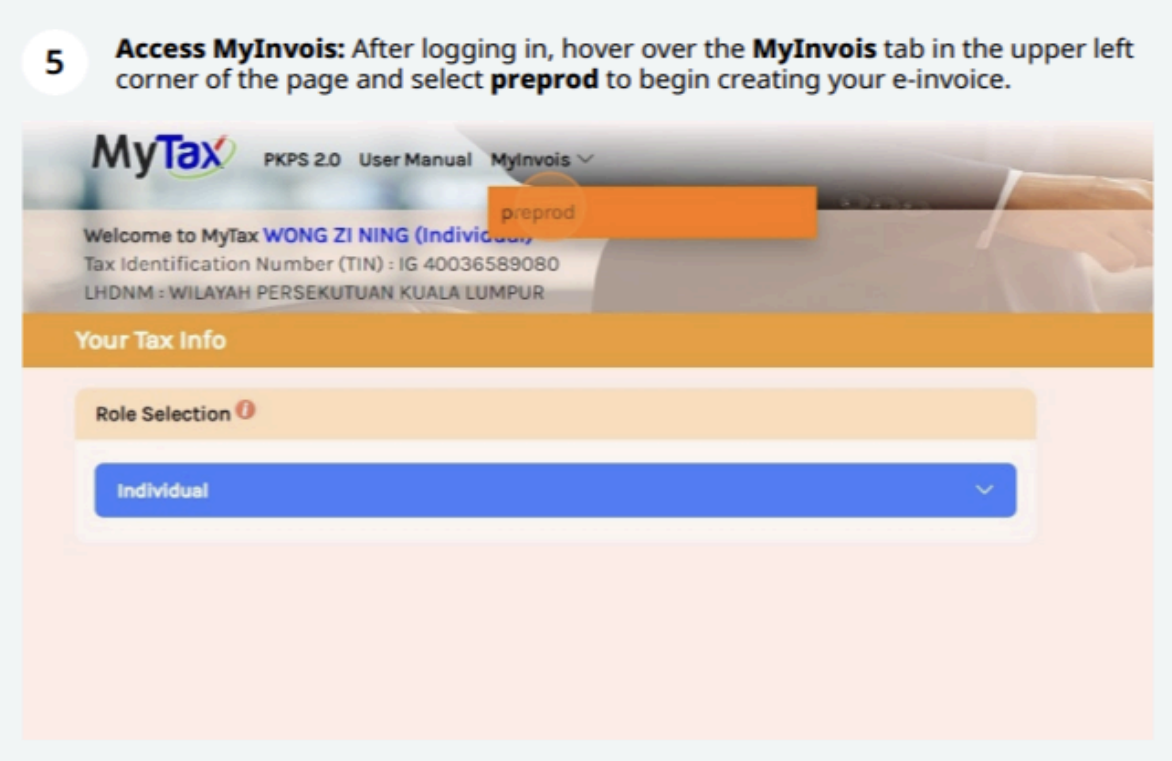
- Access MyInvois: After logging in, hover over the MyInvois tab in the upper left corner of the page and select preprod to begin creating your e-invoice.
Step 2: Create a New Invoice
Once logged in:
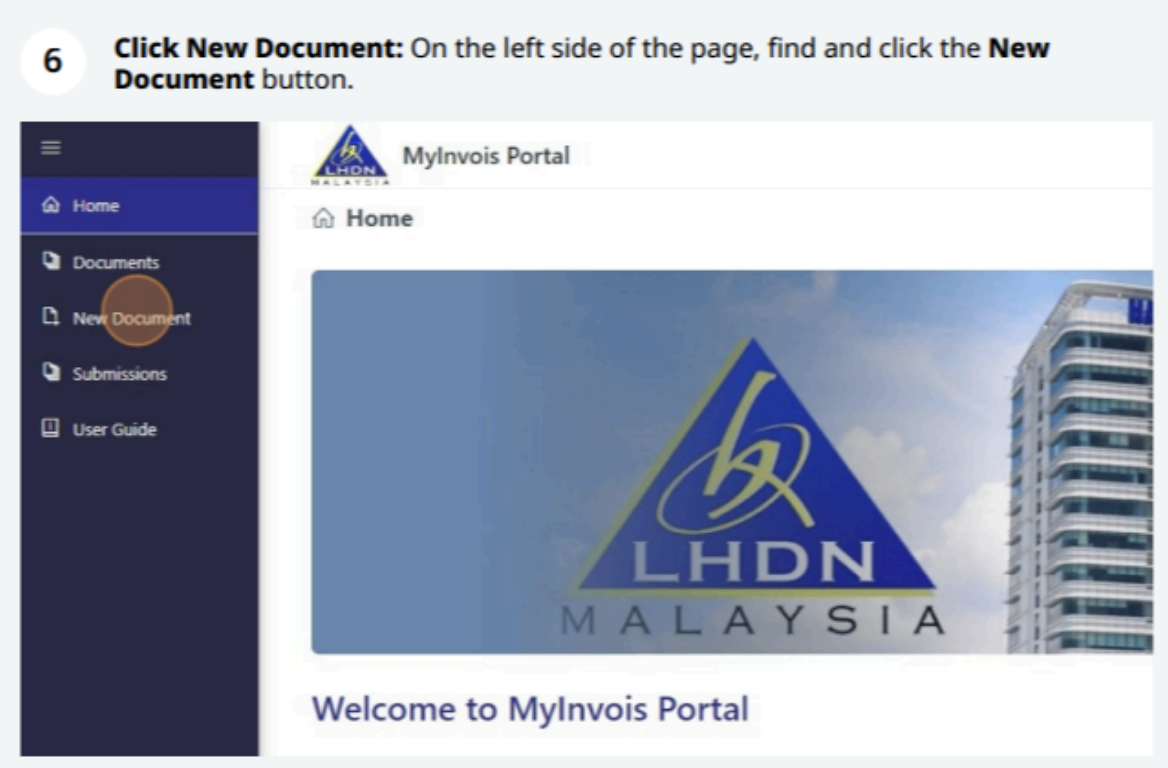
- Click New Document: On the left side of the page, find and click the New Document button.
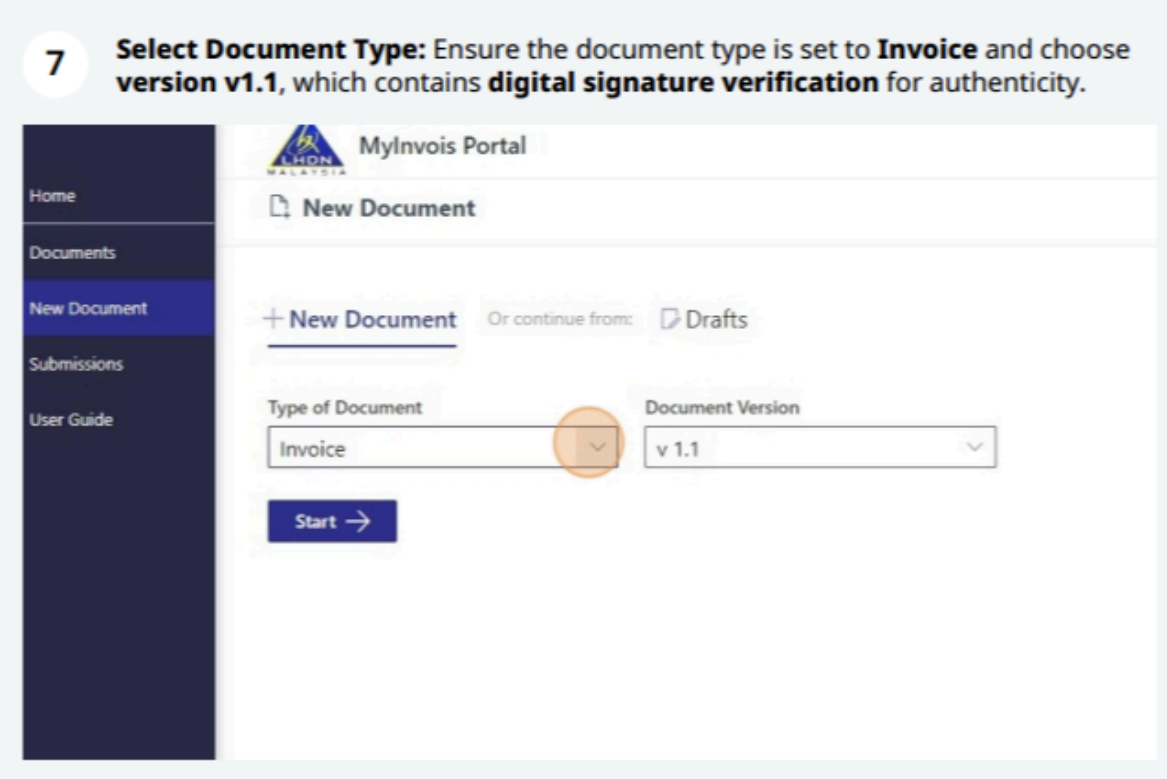
- Select Document Type: Ensure the document type is set to Invoice and choose version v1.1, which contains digital signature verification for authenticity.
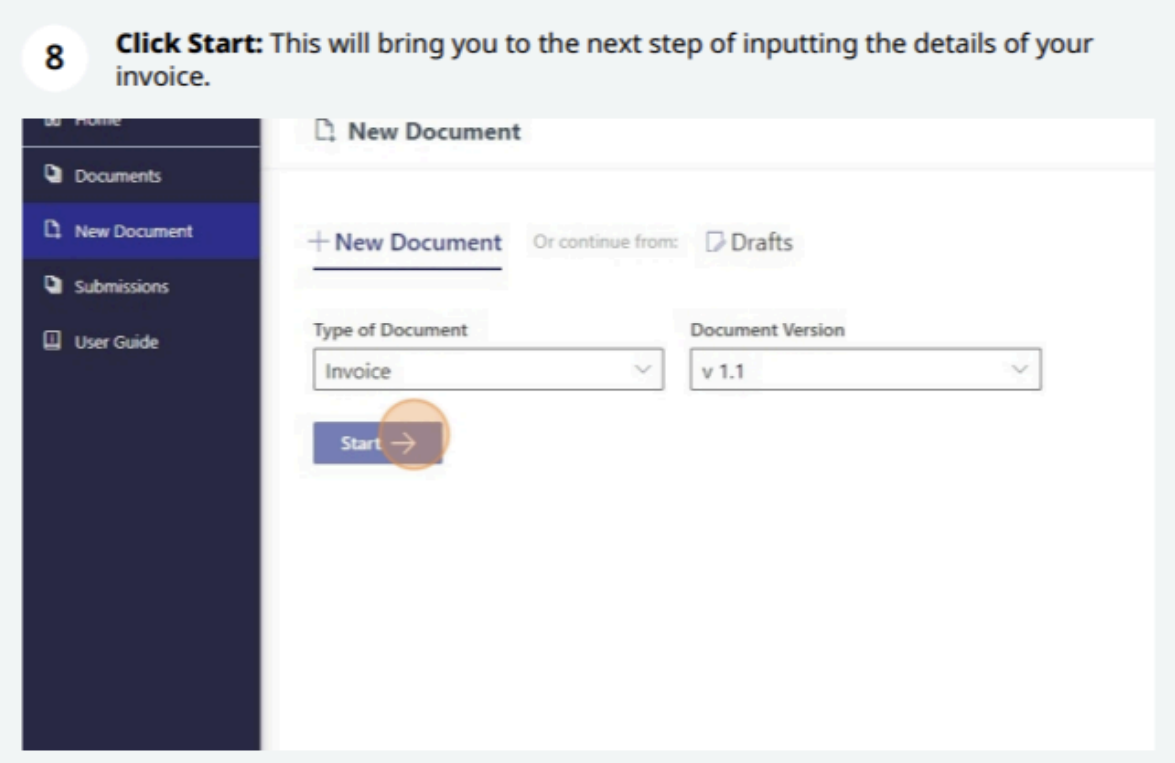
- Click Start: This will bring you to the next step of inputting the details of your invoice.
Step 3: Enter Basic Information
In this step, review the system-generated information:
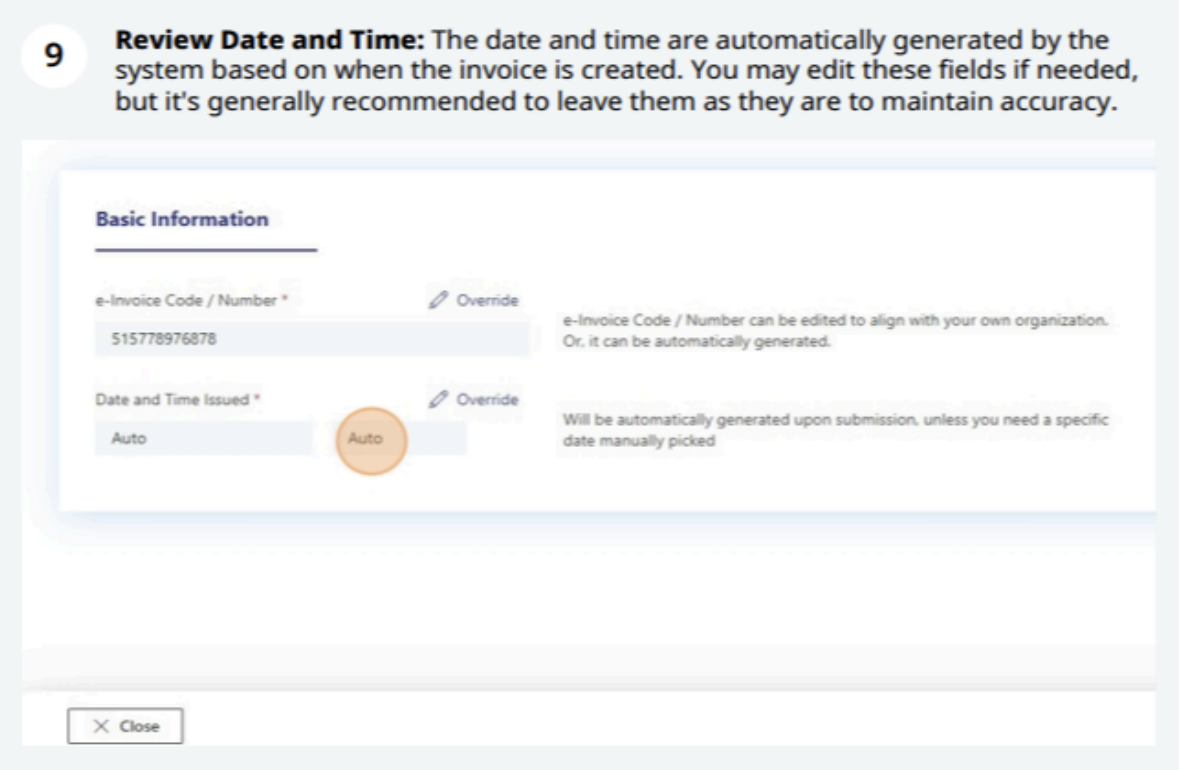
- Review Date and Time: The date and time are automatically generated by the system based on when the invoice is created. You may edit these fields if needed, but it’s generally recommended to leave them as they are to maintain accuracy.
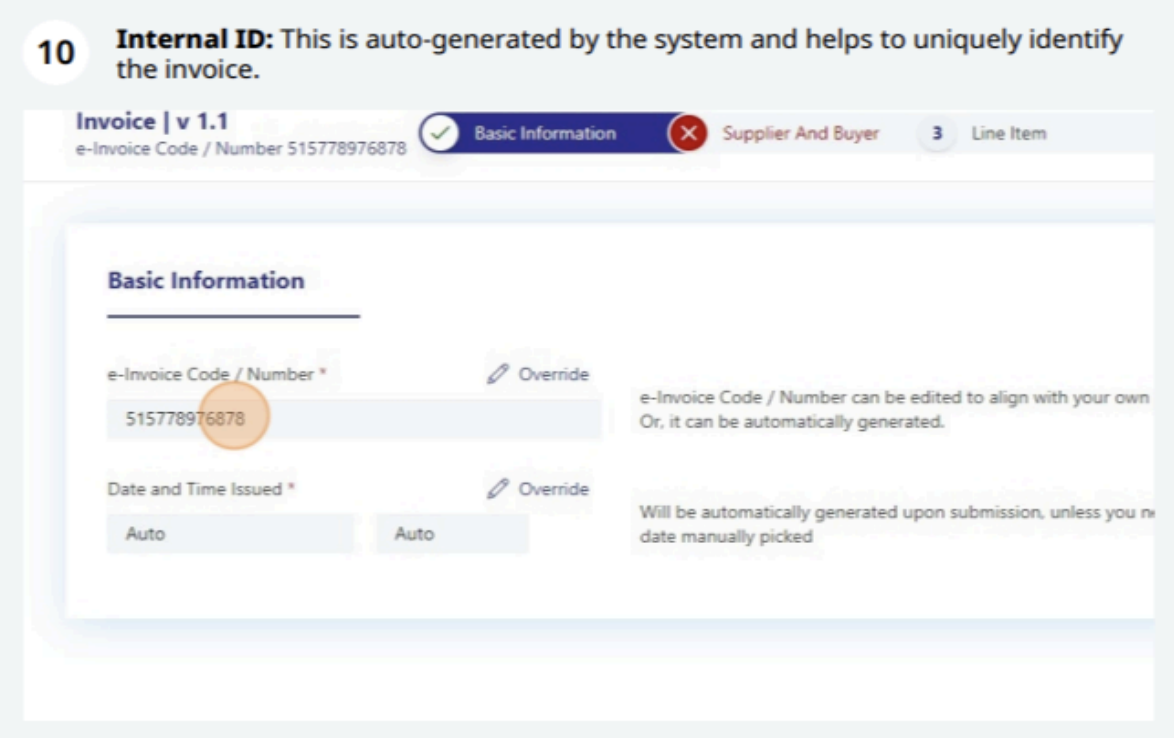
- Internal ID: This is auto-generated by the system and helps to uniquely identify the invoice.
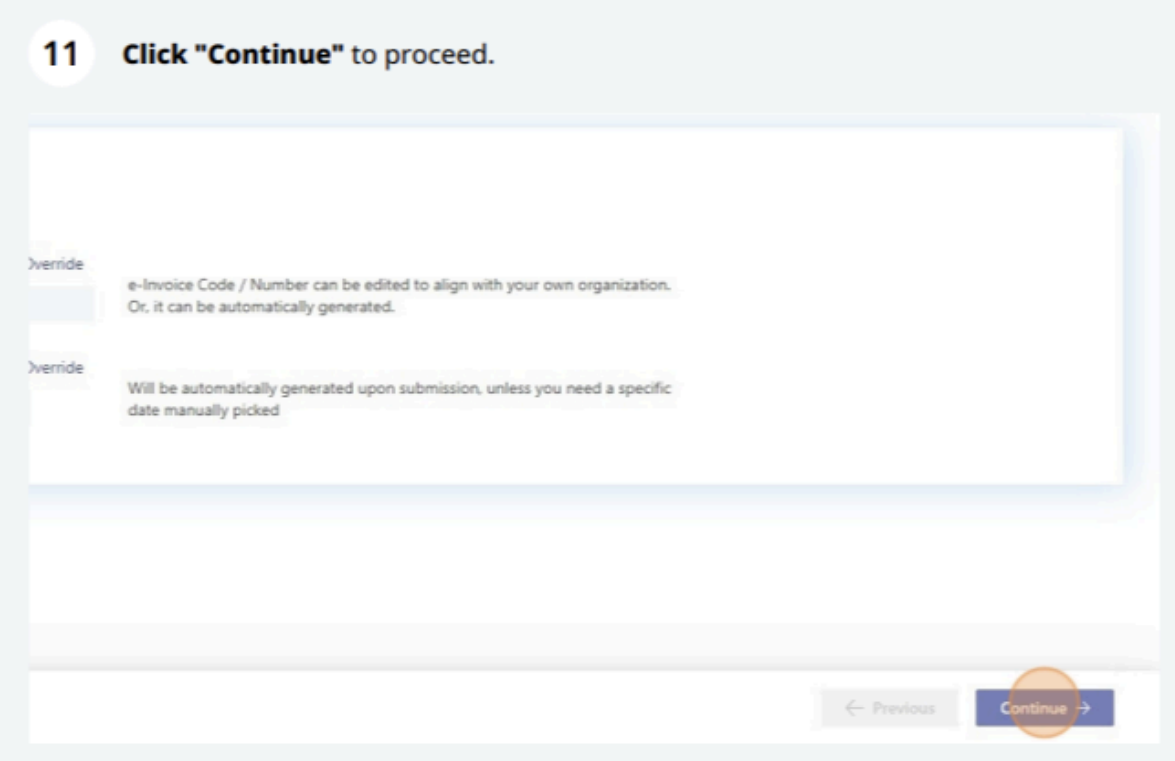
- Click Continue to proceed.
Step 4: Fill in Supplier and Buyer Details
This section is critical to ensure the accuracy of the supplier and buyer information:
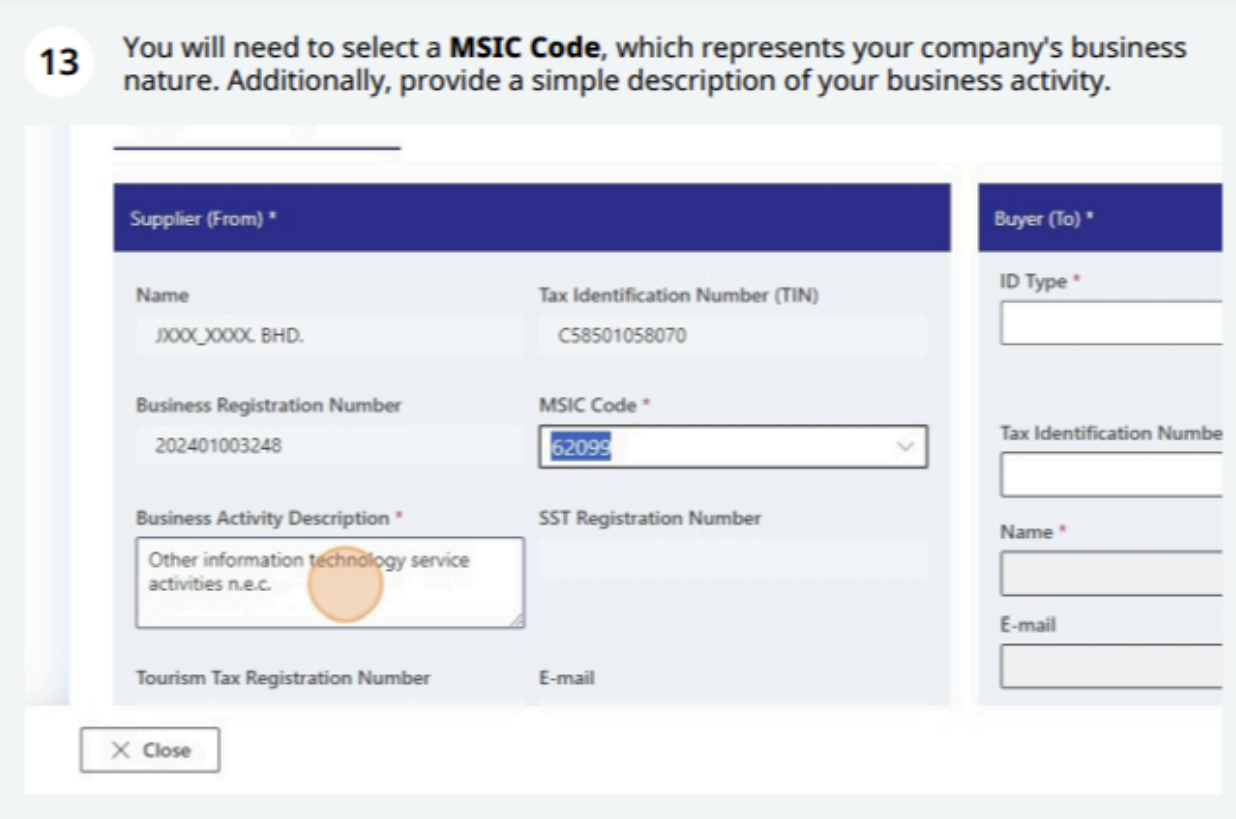
- Supplier Details: The system will automatically populate fields such as:
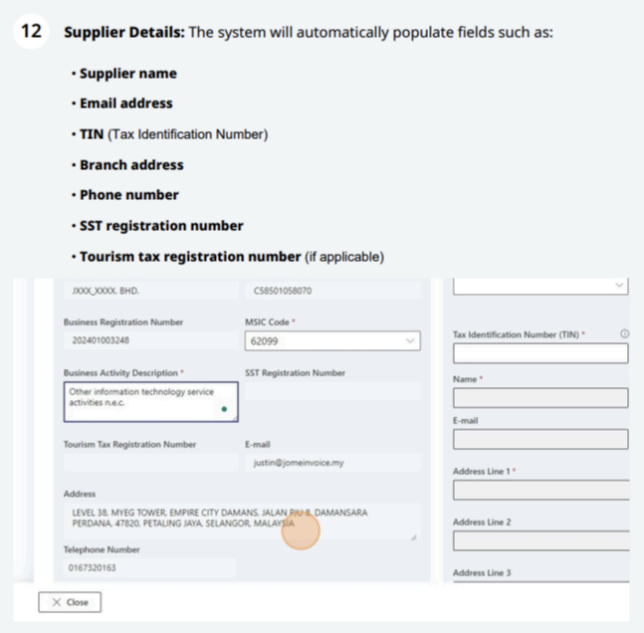
- Supplier name
- Email address
- TIN (Tax Identification Number)
- Branch address (分店地址)
- Phone number
- SST registration number
- Tourism tax registration number (if applicable)
- You will need to select a MSIC Code, which represents your company’s business nature. Additionally, provide a simple description of your business activity.
- Buyer Details: On the right side of the page, input the buyer’s information:
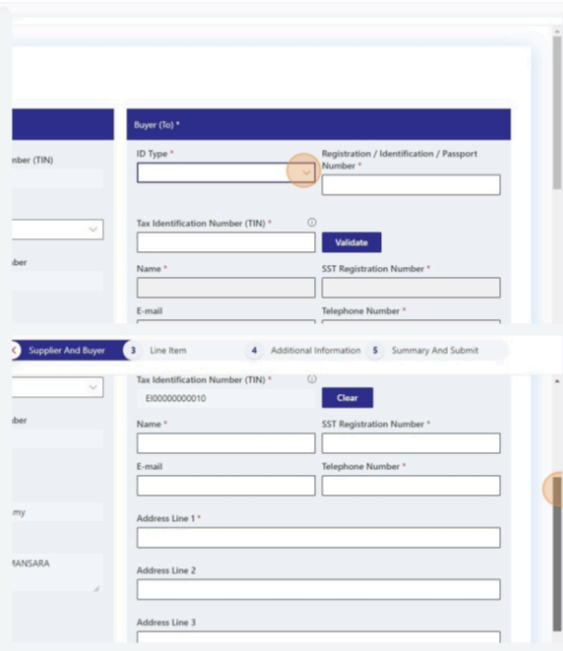
- ID Type, ID Number, and TIN (Tax Identification Number) of the buyer.
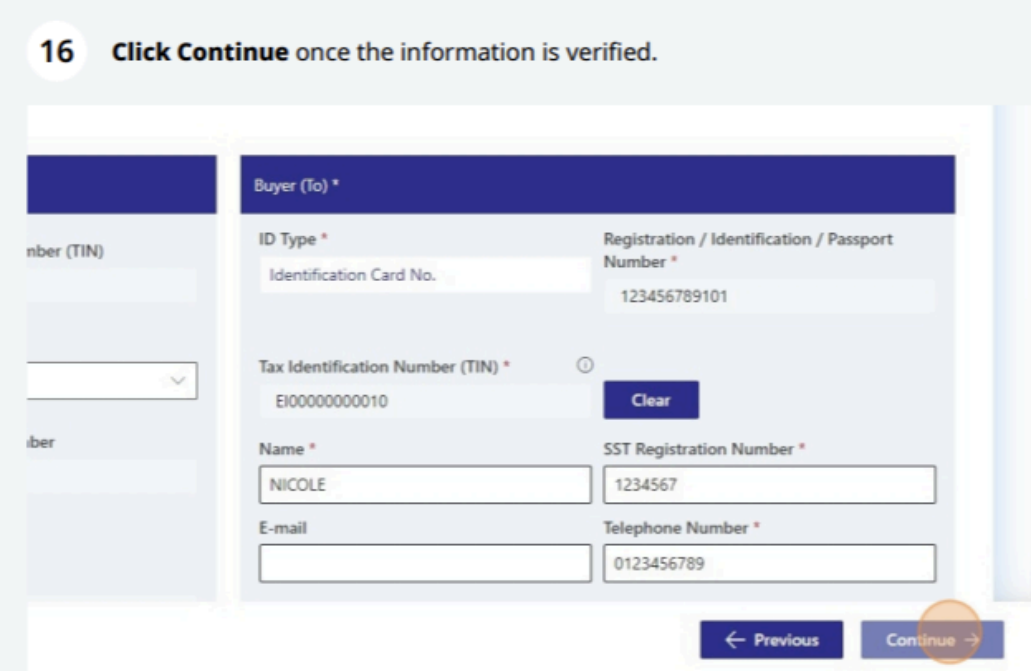
- Buyer’s name, phone number, email address (optional), SST registration number (optional), and address.
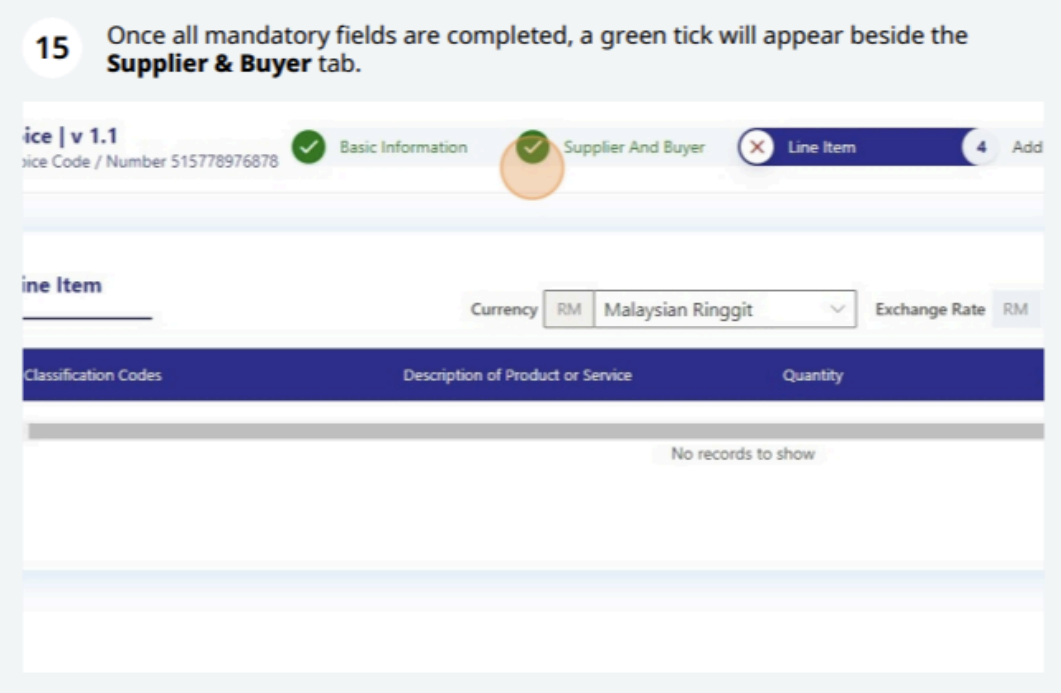
- Once all mandatory fields are completed, a green tick will appear beside the Supplier & Buyer tab.
- Click Continue once the information is verified.
Step 5: Add Line Items
This section is where you provide details about the products or services you are invoicing for:
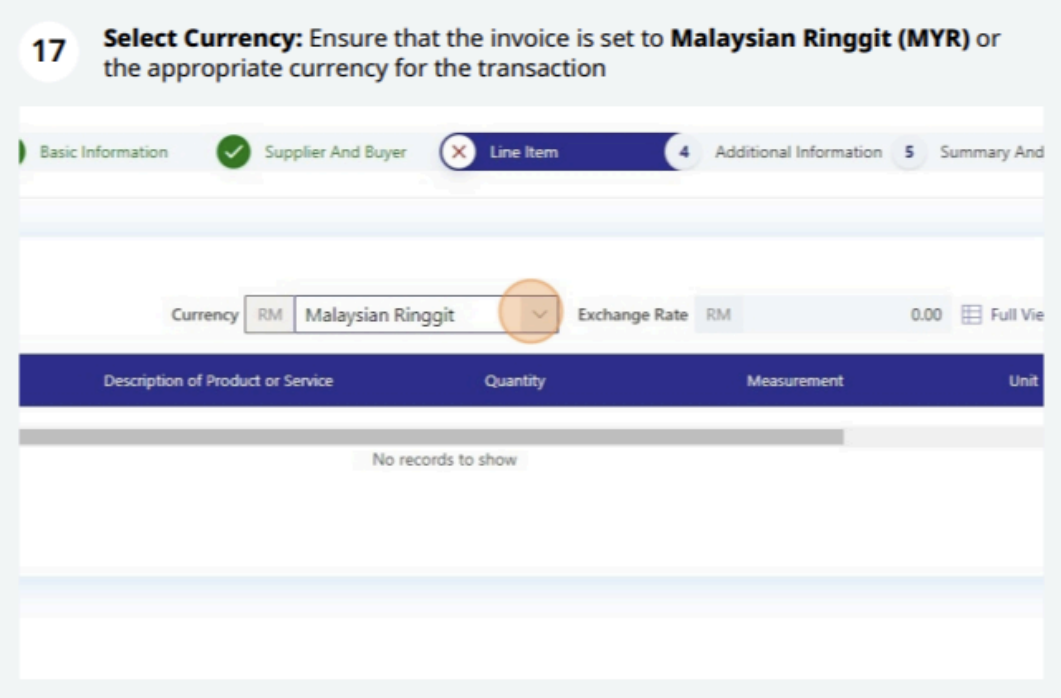
- Select Currency: Ensure that the invoice is set to Malaysian Ringgit (MYR) or the appropriate currency for the transaction.
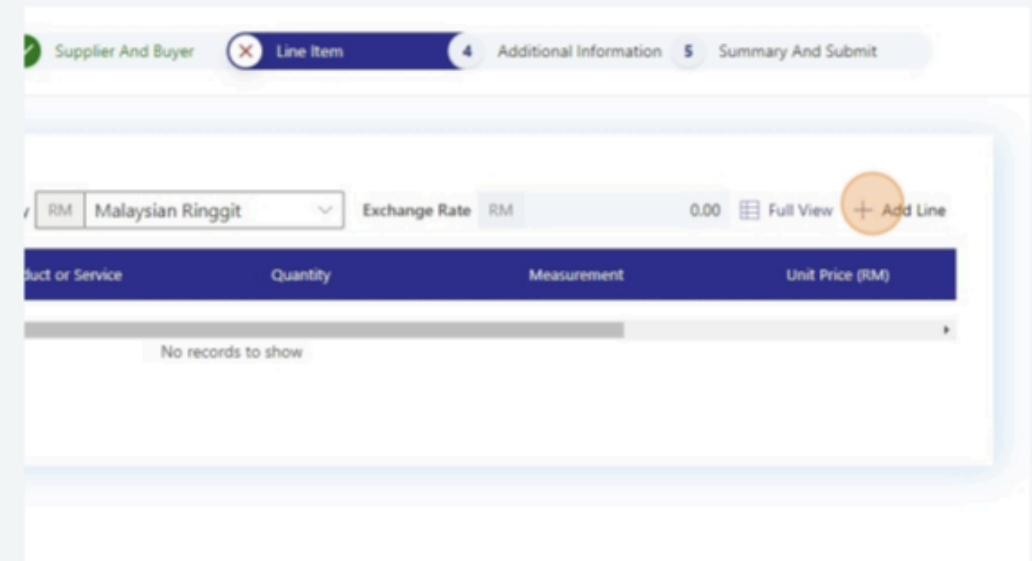
- Add Line: Click the Add Line button to input the product or service details. You’ll need to specify the following:
- Classification Code: A predefined code representing the type of product or service.
- Product/Service: Describe the product or service.
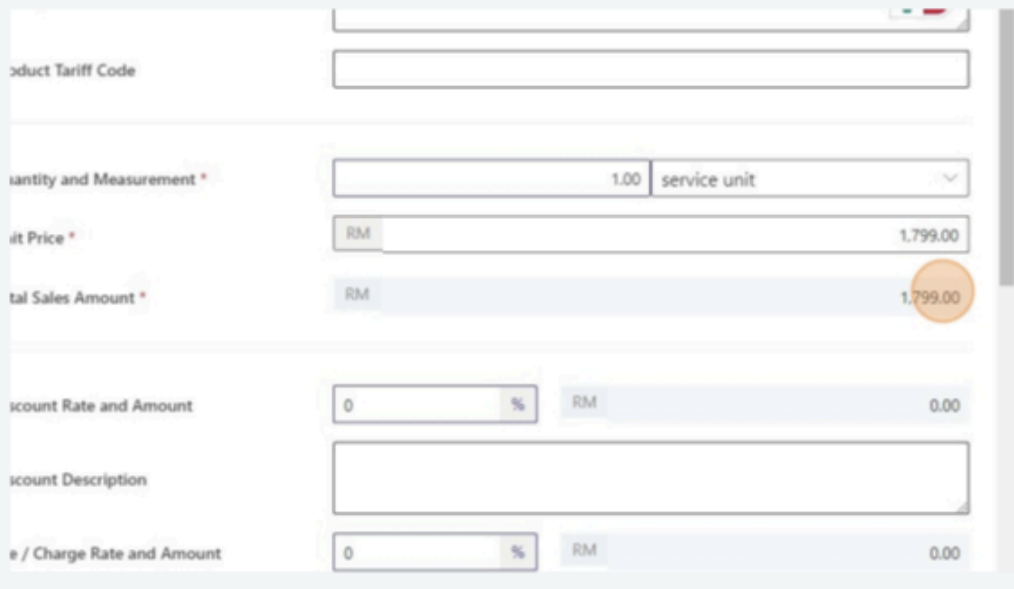
- Quantity: For example, 1 service unit.
- Unit Price: For instance, RM1,799.
- Total Sales Amount: This will be automatically calculated based on the quantity and unit price.
- Additional Fields: These include Discount (percentage), Country of Origin, Product Tariff Code, Charge Rate, and Tax Exemption Reason (if applicable).
- Continue after completing this section.
Step 6: Add Taxes
Depending on the product or service being invoiced, you will need to add the appropriate taxes:
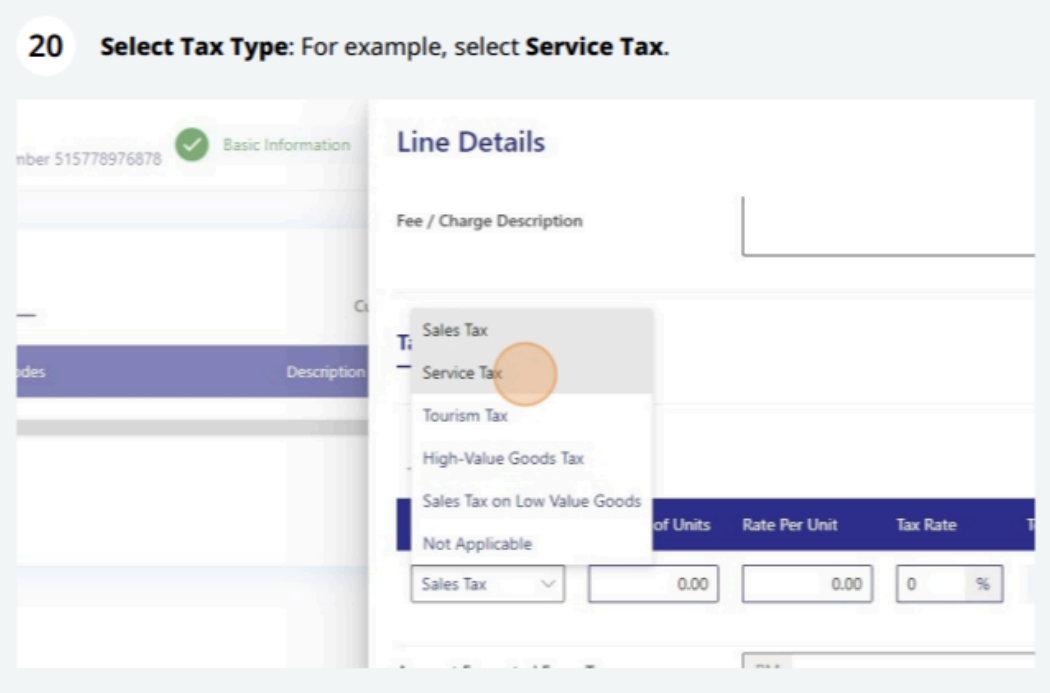
- Click Add Tax: Choose from the available tax types:
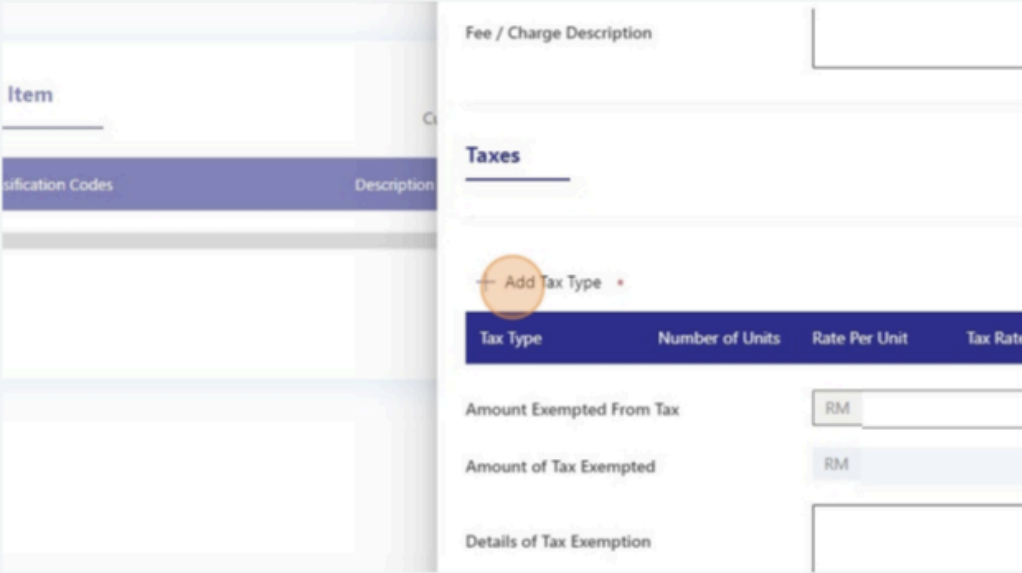
- Sales tax
- Service tax
- Tourism tax
- High-value goods tax
- Sales tax on low-value goods
- Select Tax Type: For example, select Service Tax.
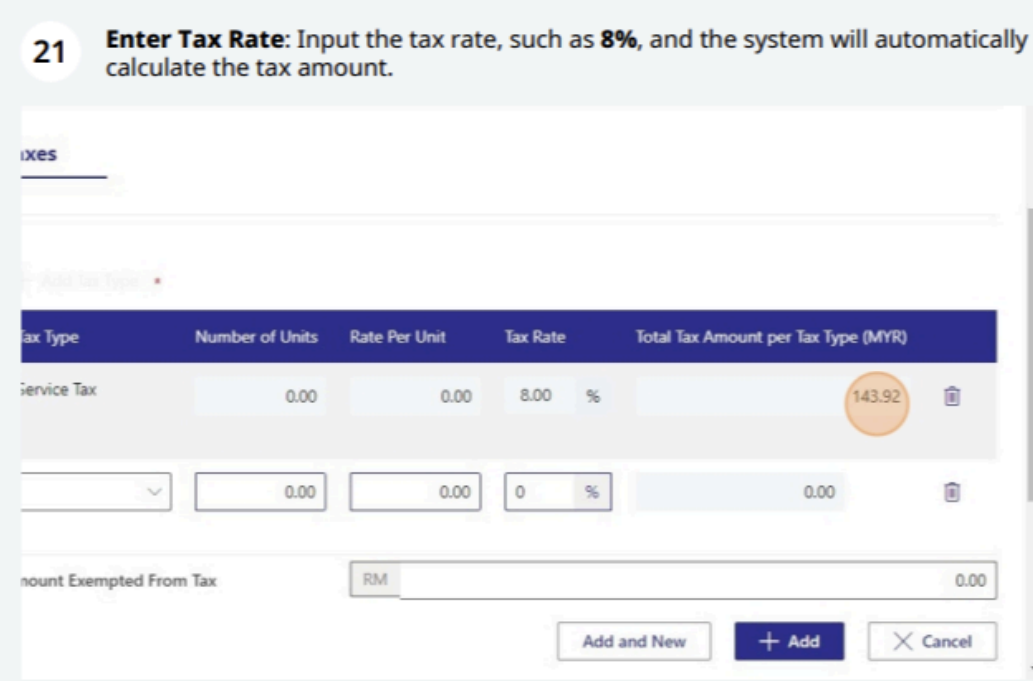
- Enter Tax Rate: Input the tax rate, such as 8%, and the system will automatically calculate the tax amount.
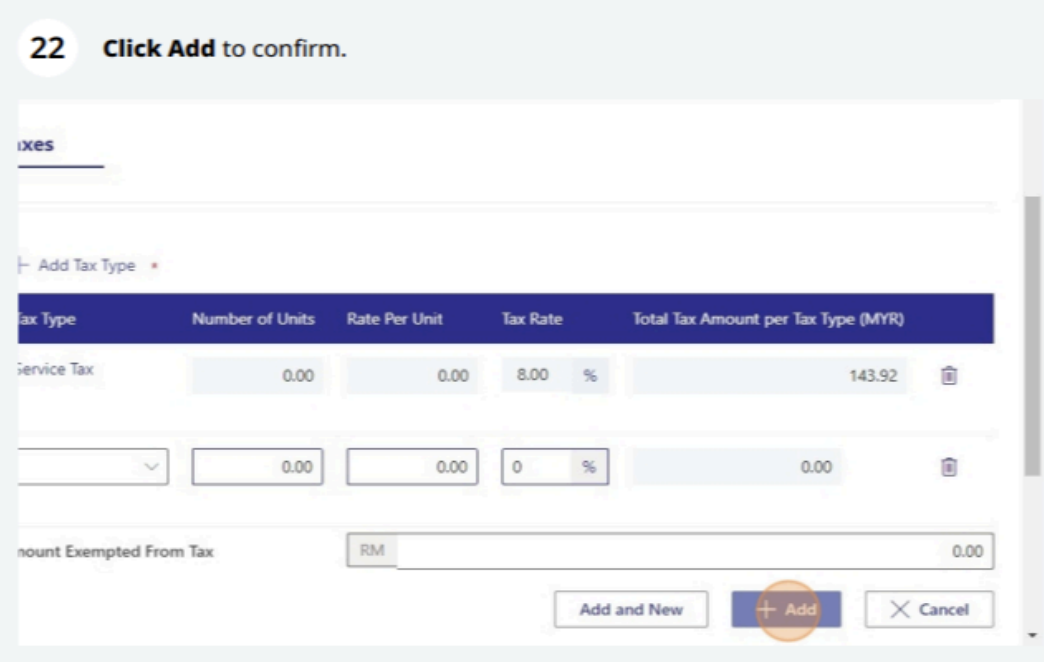
- Click Add to confirm.
Step 7: Additional Information
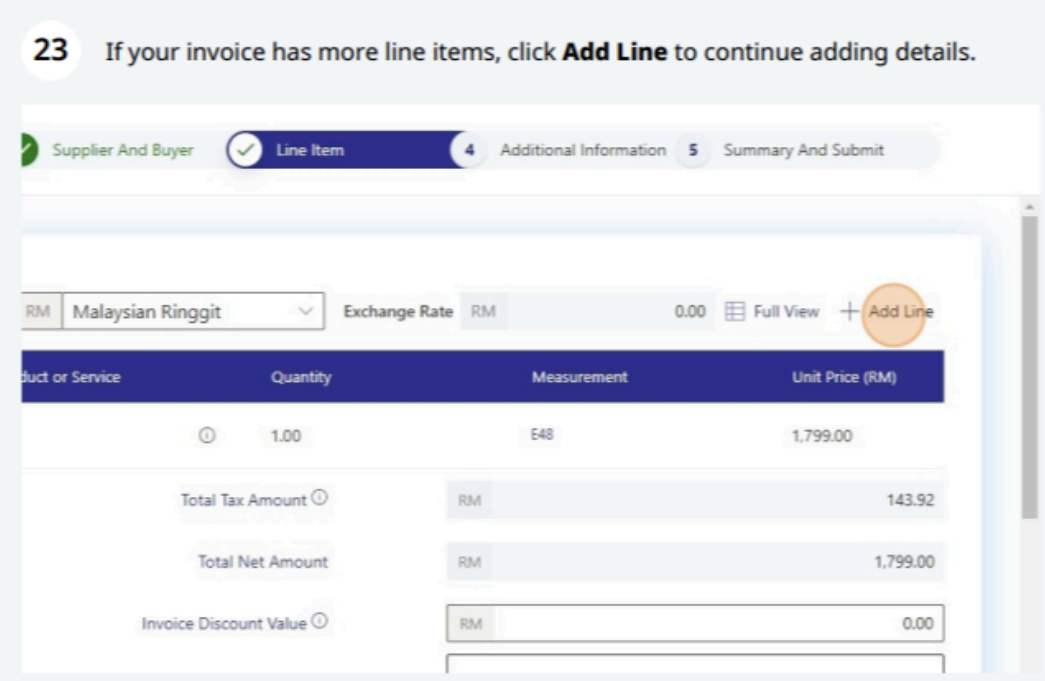
If your invoice has more line items, click Add Line to continue adding details.
You may also review optional fields such as:
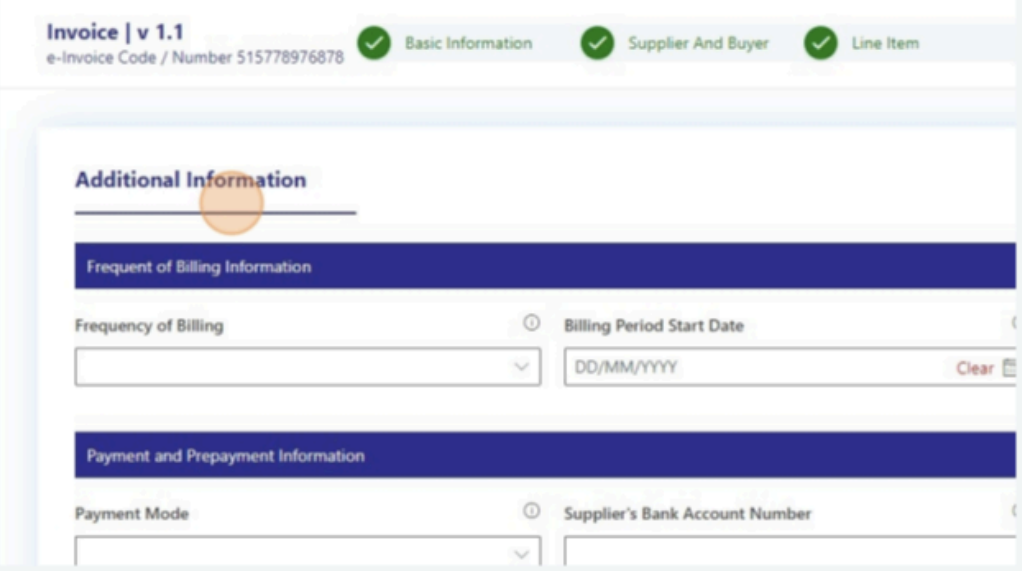
- Frequent billing information
- Payment and pre-payment information
- Shipping information
- Import and export information
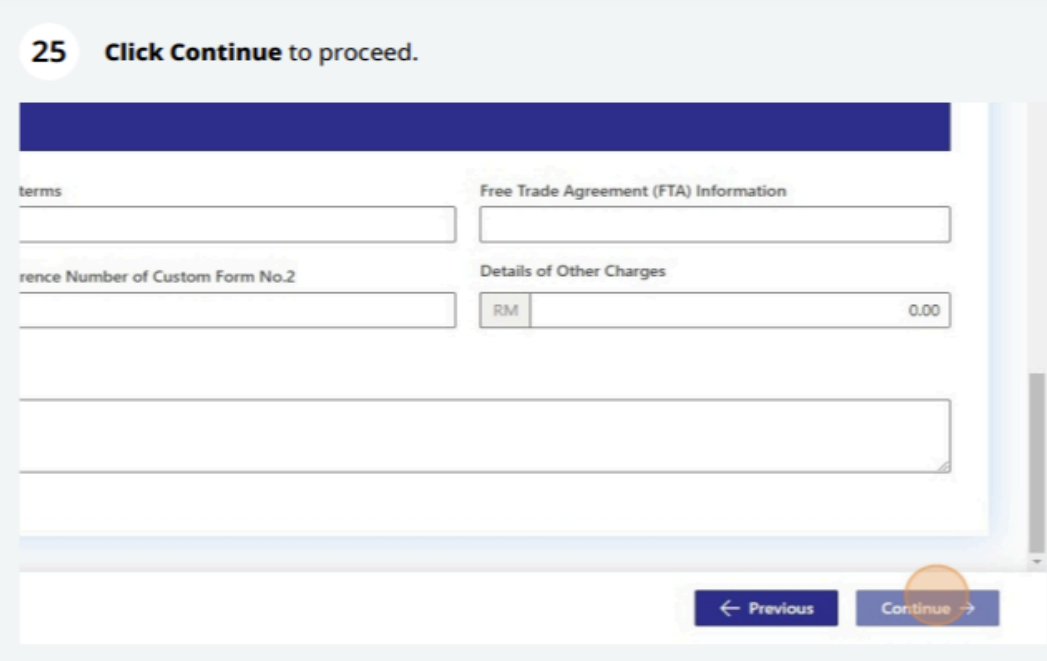
Click Continue if these fields are not applicable to your invoice.
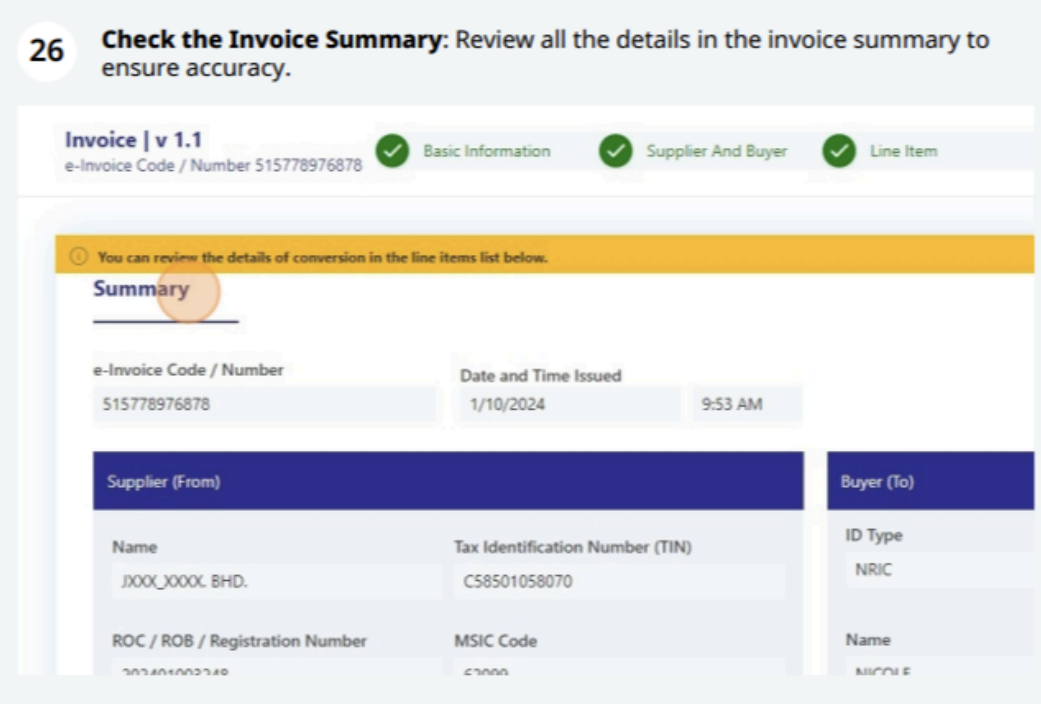
Step 8: Review and Finalize
- Check the Invoice Summary: Review all the details in the invoice summary to ensure accuracy.
- Click Sign & Submit Document: After reviewing, click this button to finalize the invoice submission.
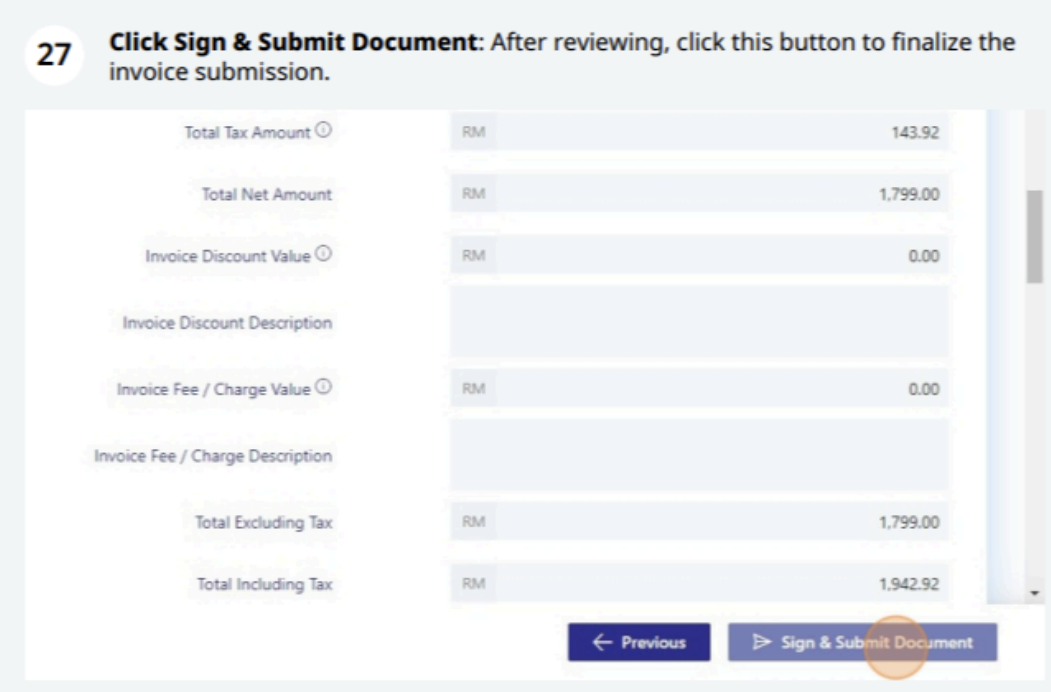
Step 9: Sign and Submit
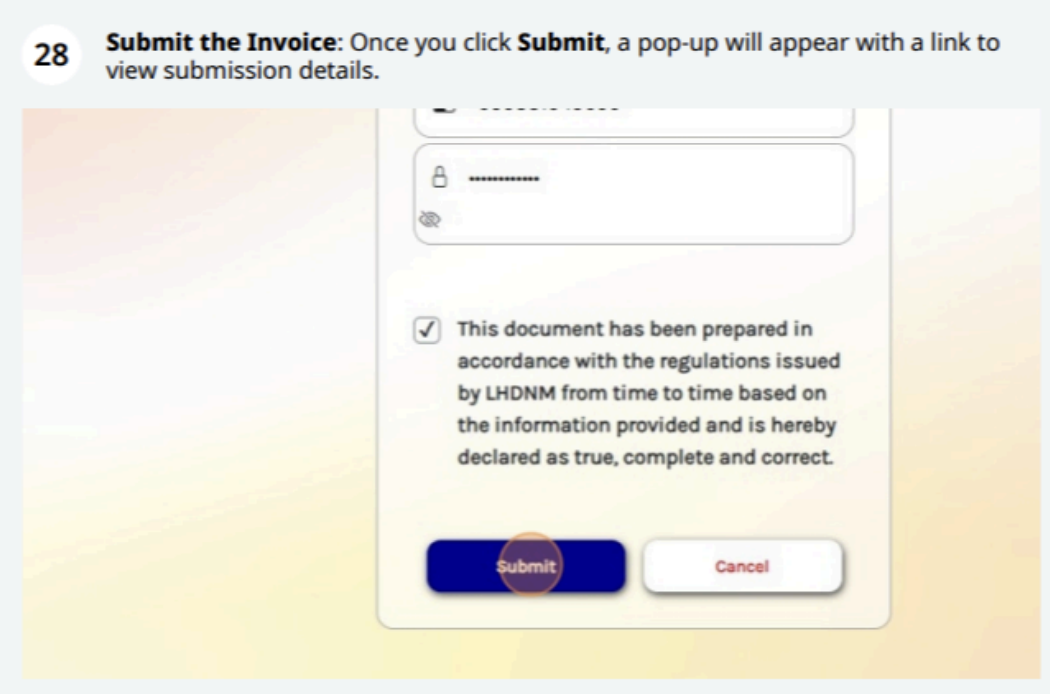
- Submit the Invoice: Once you click Submit, a pop-up will appear with a link to view submission details.
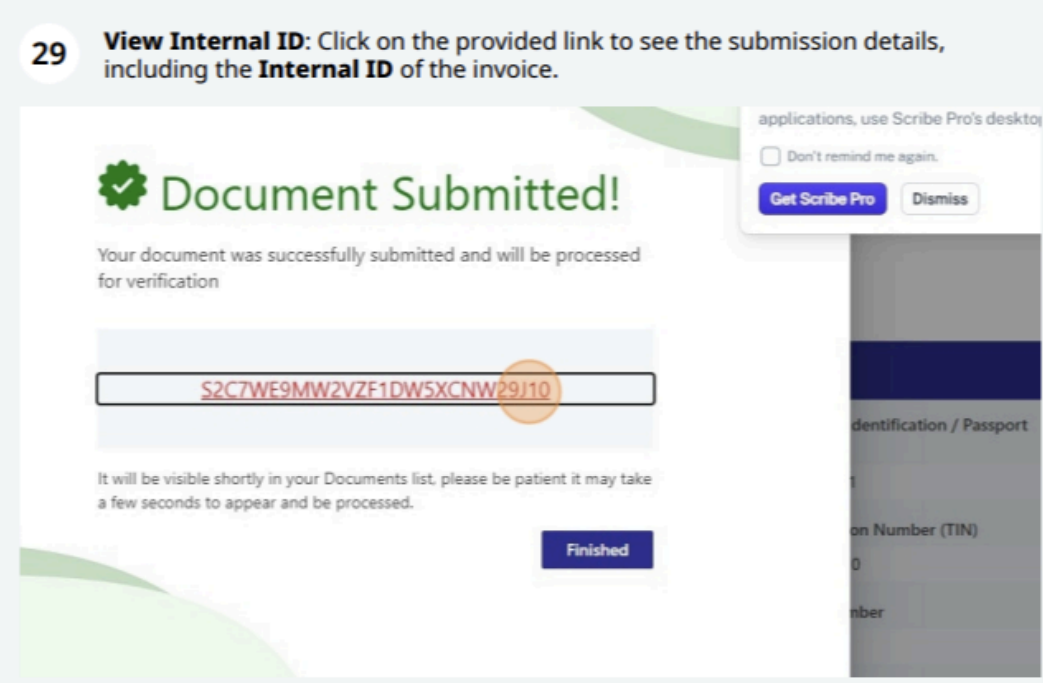
- View Internal ID: Click on the provided link to see the submission details, including the Internal ID of the invoice.
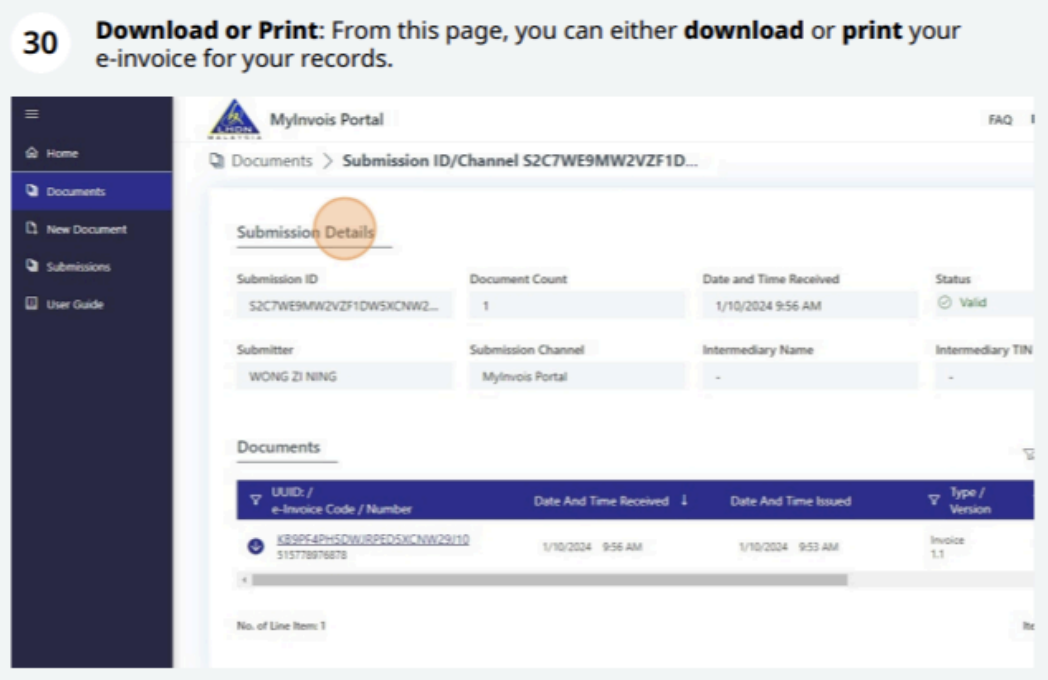
- Download or Print: From this page, you can either download or print your e-invoice for your records.
Important Note on Creating e-invoice
This entire process takes place in the MyInvois Sandbox environment, which is specifically designed for testing purposes. Any invoices created here are for simulation only and will not be stored or uploaded to the LHDN’s official system. As such, these test invoices are not valid for real transactions or compliance purposes. This allows users to practice and test without impacting actual invoicing records.
Our Recommendation: Top 3 e-invoicing Middleware Solutions in Malaysia
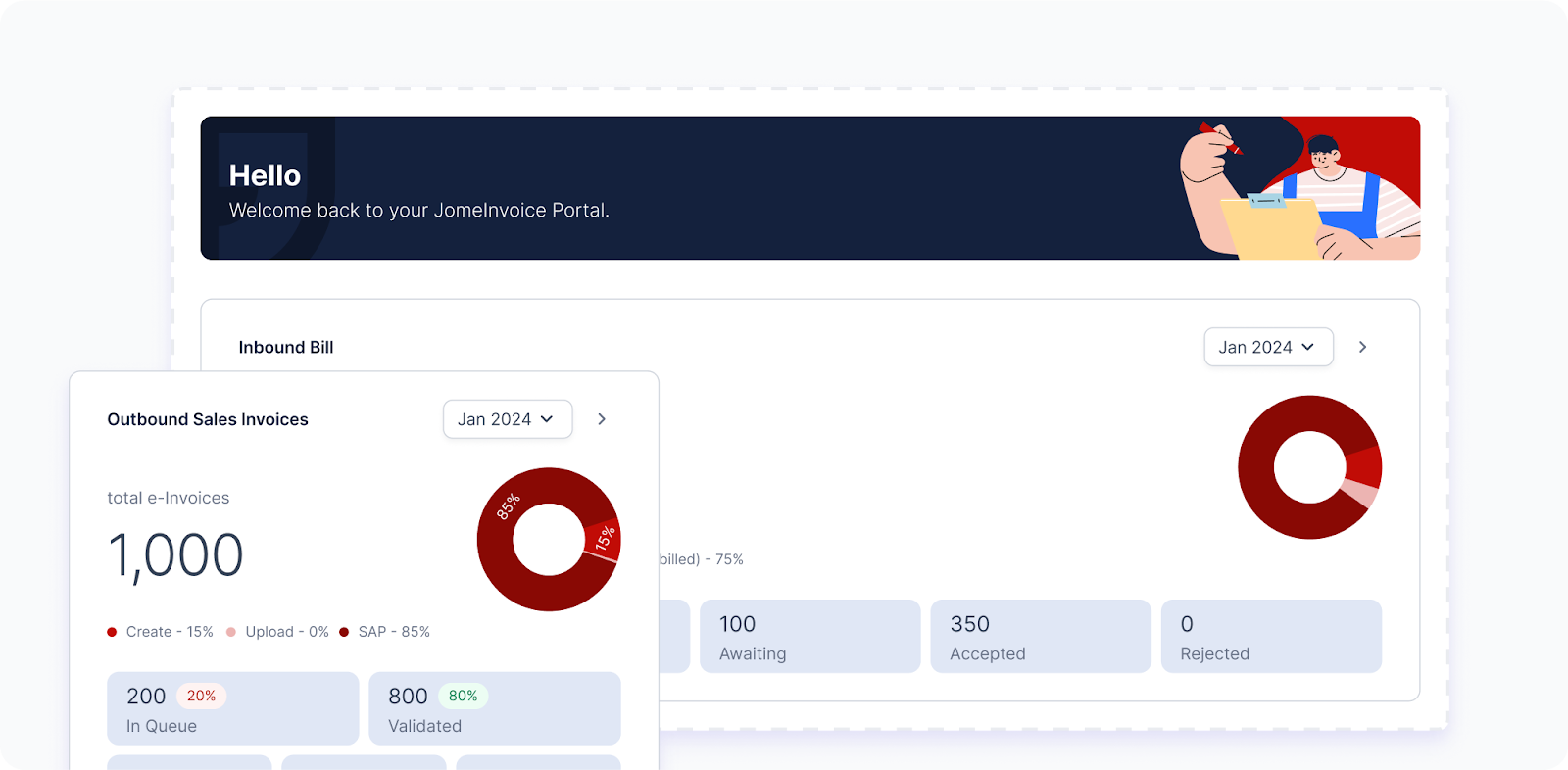
JomeInvoice Top 3 e-invoicing Software Malaysia
As Malaysia transitions into mandatory e-invoicing, businesses are on the lookout for the best e-invoicing software solutions to stay compliant with LHDN’s regulations. In addition to mastering the MyInvois Portal, it’s crucial to have an e-invoicing software that can simplify this process. This is where JomeInvoice stands out as one of the Top 3 middleware e-invoicing platforms in Malaysia.
Why JomeInvoice is the Best e-invoicing Software Solution for SMEs and Large Enterprise Malaysia:
JomeInvoice stands out as the most user-friendly and comprehensive e-invoicing software solution, offering the perfect balance of flexibility, compliance, and support for both SMEs and large enterprise Malaysia. Whether you are transitioning into the LHDN e-invoicing mandate or looking to streamline your current invoicing process, JomeInvoice provides everything you need—from free trials to ongoing updates and local support.
- Flexible System Compatibility
JomeInvoice offers seamless integration with popular systems such as SAP ECC6, S4 Hana, Sage300, MS365, Netsuite, Odoo, Xero & etc. This flexibility makes it ideal for businesses of all sizes—whether you’re an SME or a large enterprise Malaysia, JomeInvoice adapts to your current operations without a hitch. - Full Compliance with LHDN e-Invoicing Regulations
Compliance is key, and JomeInvoice ensures that your business meets all LHDN e-invoicing guidelines. ISO-certified and fully PDPA-compliant, JomeInvoice offers a secure, worry-free invoicing process that keeps you aligned with Malaysia’s regulatory standards. - Trusted by Leading Businesses
Over 60+ major companies, including those in Phase 1 of e-invoicing compliance, rely on JomeInvoice for their invoicing needs. The platform is proven to handle large-scale, complex transactions seamlessly, making it a trusted choice across industries. - Free Upgrades, Training, and Dedicated Support
JomeInvoice keeps your business up to date with automatic upgrades that maintain LHDN compliance. Plus, free training and access to a dedicated Malaysian support team ensure your staff can easily adapt to the platform. With cloud server capabilities, you’ll also benefit from secure, flexible invoicing solutions. - Backed by a Listed Company
JomeInvoice is not just reliable but also backed by a publicly listed company on Bursa Malaysia. This adds an extra layer of trust and assurance for businesses looking to invest in long-term solutions.
Ready to streamline your e-invoicing processes?
Contact JomeInvoice today and take advantage of the best e-invoice software features! Our dedicated team is ready to help your business stay ahead with compliance and efficiency.
Contact JomeInvoice Sdn Bhd:
- Address:
Level 38, MYEG Tower, Empire City Damansara, Jalan PJU 8, Damansara Perdana, 47820 Petaling Jaya, Selangor
D-04-07, Plaza Bukit Jalil (Aurora Place), No. 1, Persiaran Jalil 1, Bandar Bukit Jalil, 57000 Kuala Lumpur - Phone: +6016-732 0163
- Social Media:
LinkedIn | Facebook
Don’t wait—schedule a free consultation today and see why JomeInvoice is the top choice for businesses nationwide!