

When you handle e-Invoice and tax documents, one missing TIN can delay the whole process. You need the number to prepare records correctly, but the other party may not reply fast. Sometimes they do not know their own TIN. That slows down billing, onboarding, and submission work.
The good news is this. You can check TIN through the MyTax portal. The first step requires login using the MyDigital ID app. After login, you can access the TIN Search function and check TIN number online for individuals and businesses.
This guide covers both lookups: individuals, by identification card or passport number, and companies and other non-individual entities. A faster in-system option for teams that check TINs every day is covered in the last section.
Why businesses need to check TIN for LHDN e-Invoice compliance
For many finance and admin teams, the biggest delay is not the invoice itself. The delay starts when a TIN is missing.
This creates common problems:
- Delayed invoice preparation
- Repeated follow-up with customers or suppliers
- Incomplete tax records
- Slower onboarding
- Higher risk of submission issues
When you can check TIN number online, you save time and keep work moving. That is why the MyTax portal matters. It gives businesses a practical way to verify tax details.
Step 1: Log in to the MyTax portal using the MyDigital ID app
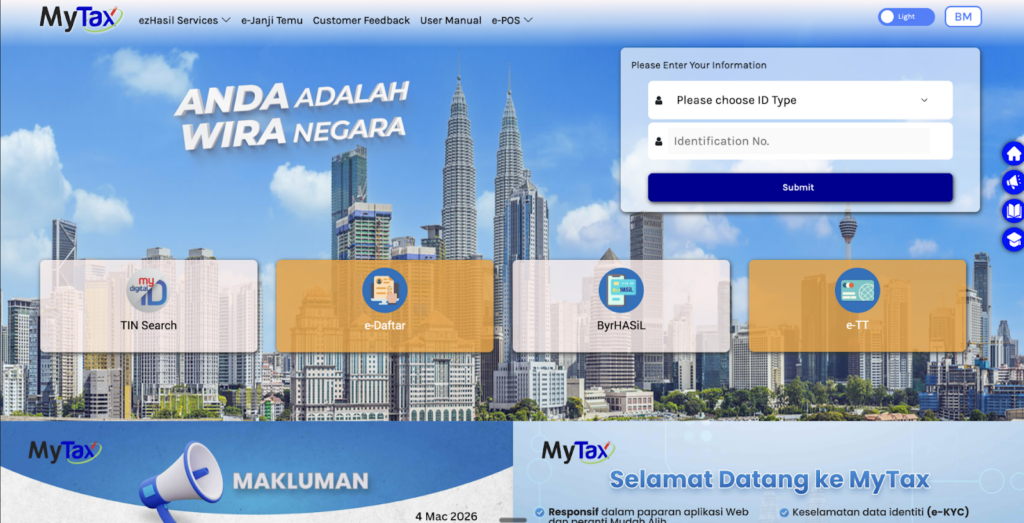
To check TIN on the MyTax portal, first log in to your MyTax account using the MyDigital ID app.
This is the required first step before you can access the dashboard. Once login is completed, you can move to the TIN Search function.
This is important because many users assume they can go straight to search. In practice, the TIN Search function only appears after you have logged in.
d
Step 2: Open the TIN Search function in the MyTax portal
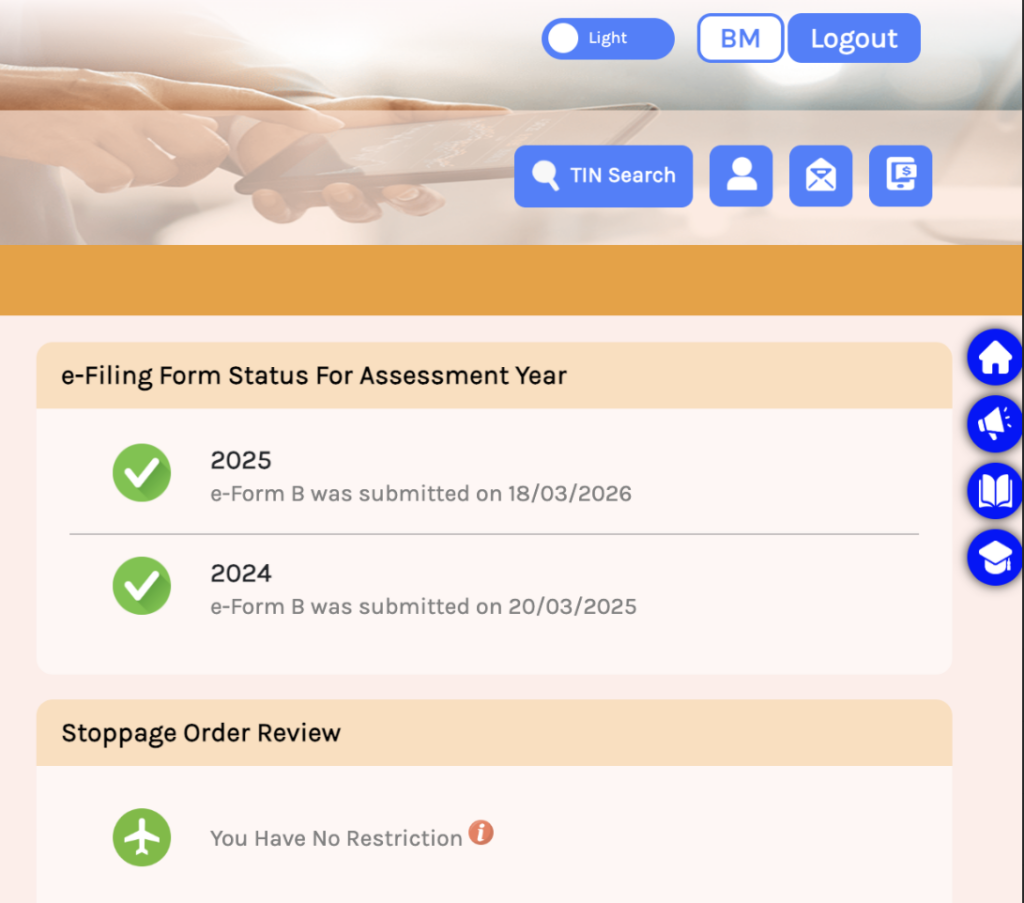
After login, go to the top right corner of the dashboard and click TIN Search.
This opens the TIN Search system. This is the main area where you check TIN number online for different taxpayer categories.
t
Step 3: Enter the TIN Search system
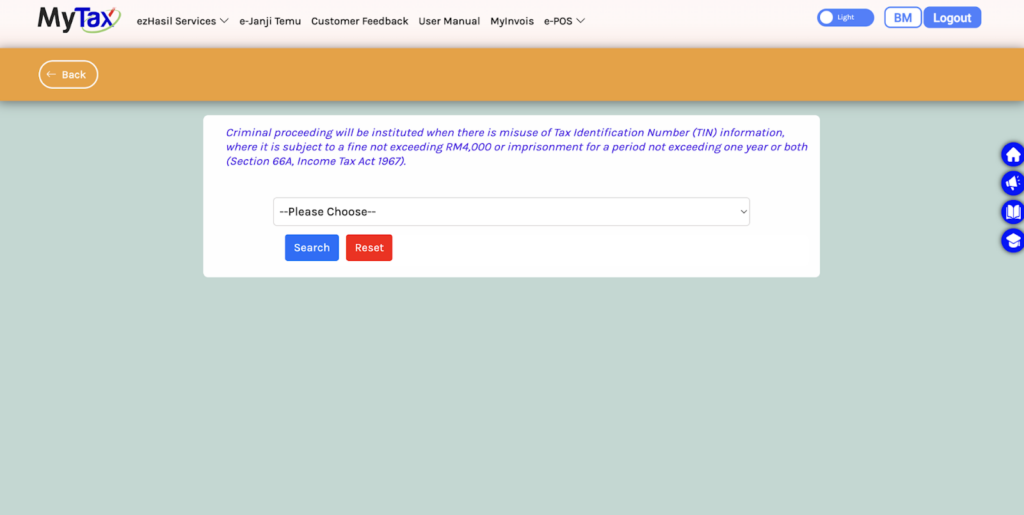
Once inside the TIN Search page, you will see a dropdown menu and action buttons such as Search and Reset.
The page also displays a warning about misuse of TIN information. It states that misuse can lead to criminal action, fines, or imprisonment under Section 66A of the Income Tax Act 1967.
Use this feature only for proper tax, invoicing, and compliance purposes.
How to check TIN for individuals on the MyTax portal
If you need to check TIN for a person, follow these steps.
t
Step 4: Select Individuals
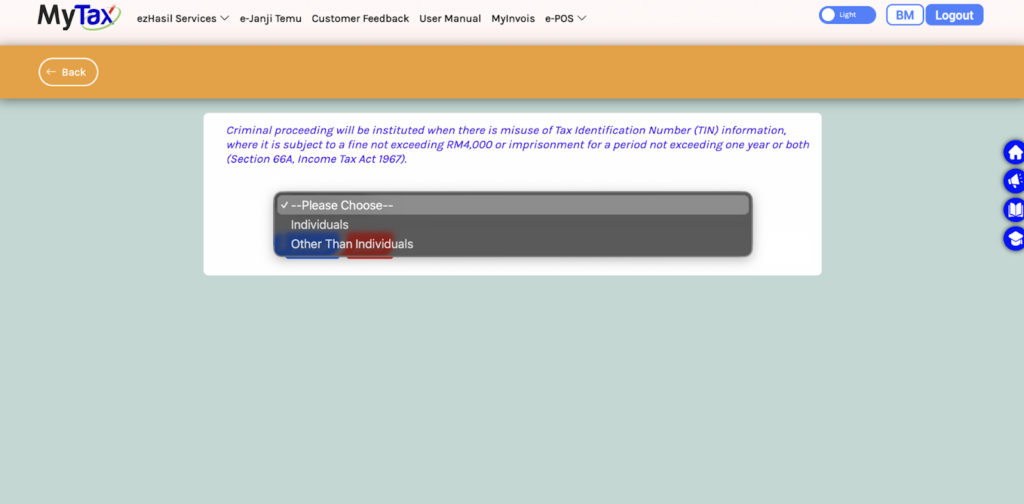
In the category field, choose Individuals.
hg
h
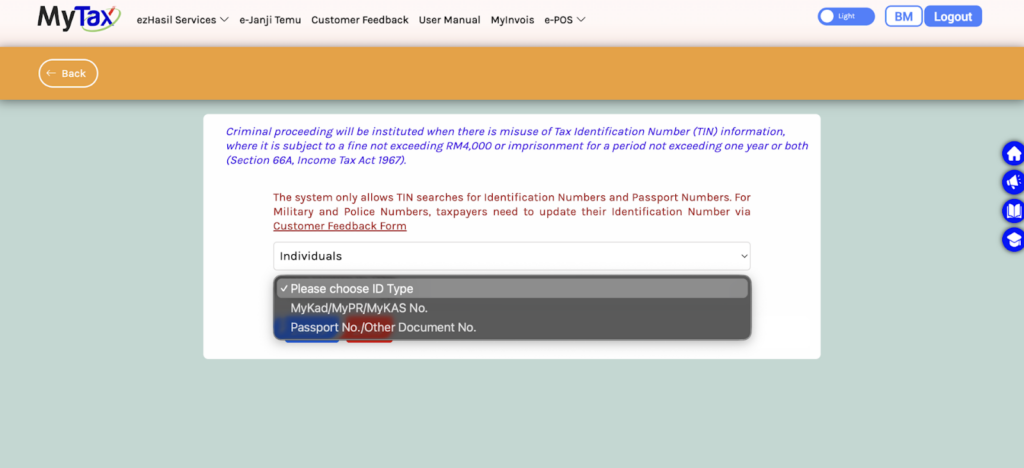
Then select the ID type. Based on the images, the available options include:
- Identification Card No.
- Passport No.
- MyKad, MyPR, or MyKAS number
Choose the option that matches the information you have.
h
Step 5: Enter the identification number
After selecting the ID type, enter the person’s identification number.
The guide images show that when using Identification Card No., the NRIC should be entered as 12 digits without dashes.
That detail matters. A small format error can cause the search to fail.
h
Step 6: Click Search to check TIN number online
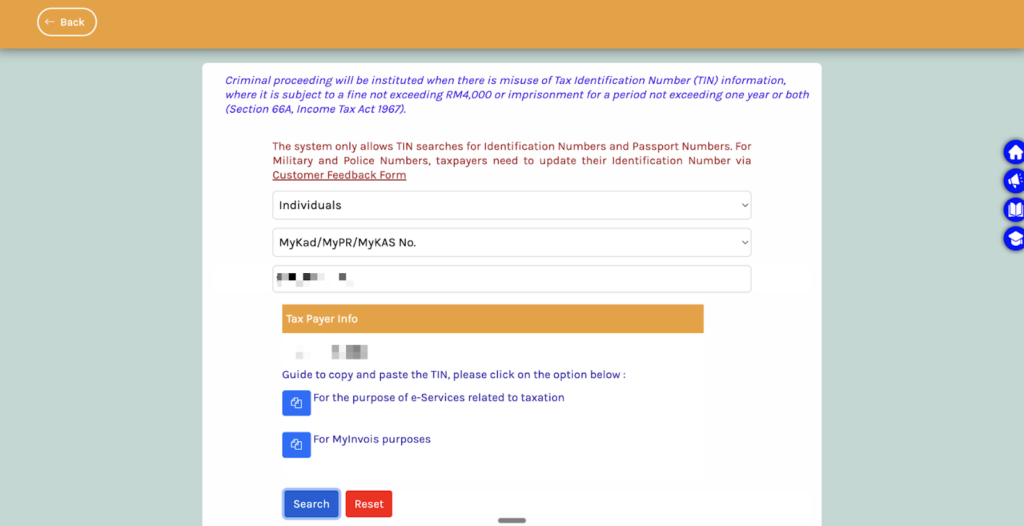
After entering the number, click Search.
If the details match the record, the Tax Payer Info section will display the TIN. The images also show copy options for tax-related e-Services and for MyInvois purposes.
This is the standard way to check TIN number online for an individual through the MyTax portal.
h
How to check TIN for companies and non-individual entities on the MyTax portal
The MyTax portal also allows you to check TIN for businesses and other entity types.
Step 4: Select Other Than Individuals
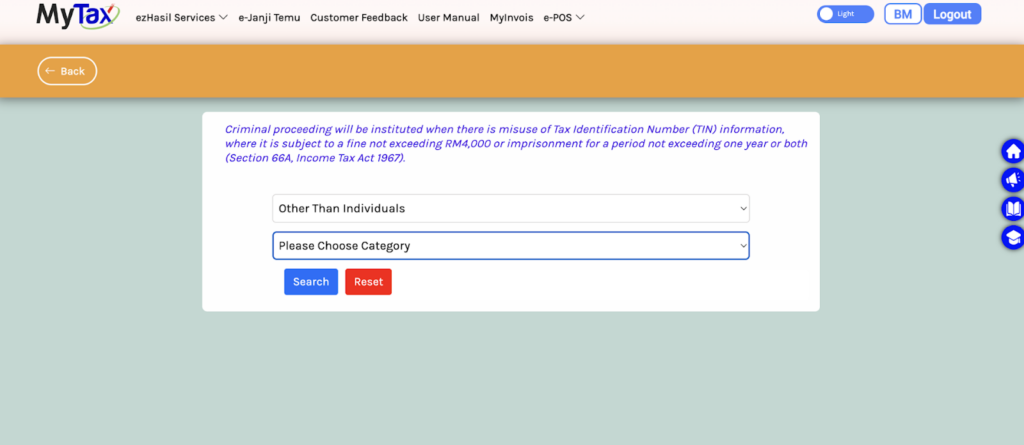
If you need to check TIN for a company or other non-individual taxpayer, choose Other Than Individuals.
Then select the correct category. The images show these categories:
- Company ©
- Limited Liability Partnership (PT)
- Co-operative Society (CS)
- Trust Body (TA)
- Partnership (D)
- Association (F)
- Hindu Joint Family (J)
- Labuan Entity (LE)
- Public Entertainer (FA)
- Deceased Person’s Estate (TP)
- Unit Trust / Property Trust (TC)
- Real Estate Investment Trust / Property Trust Fund (TR)
- Business Trust (TN)
Choosing the correct category is important because the system uses this category to locate the right taxpayer record.
t
Step 5: Enter the reference number
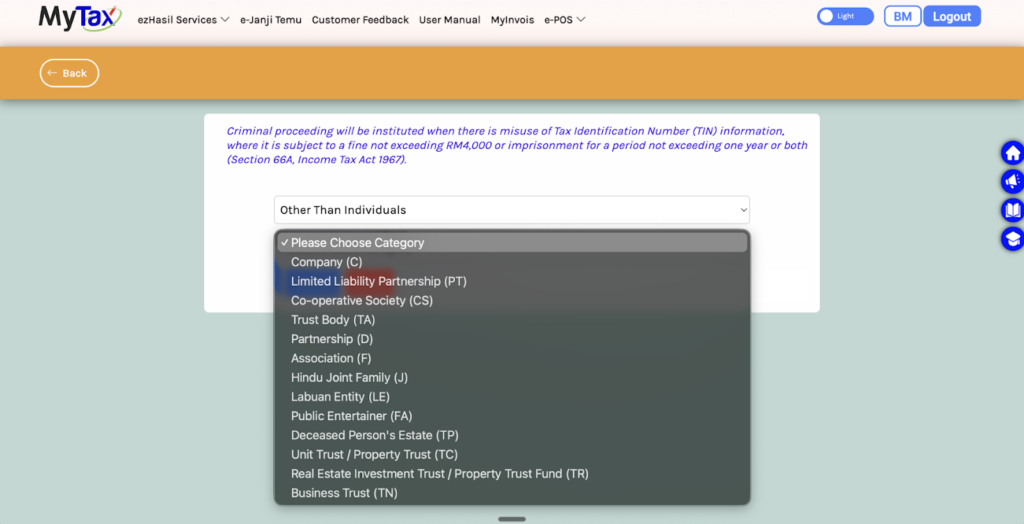
After selecting the entity type, enter the relevant reference number in the field provided.
The guide images remind users to ensure the reference number is correct before searching. A wrong number will likely return no result.
t
Step 6: Click Search
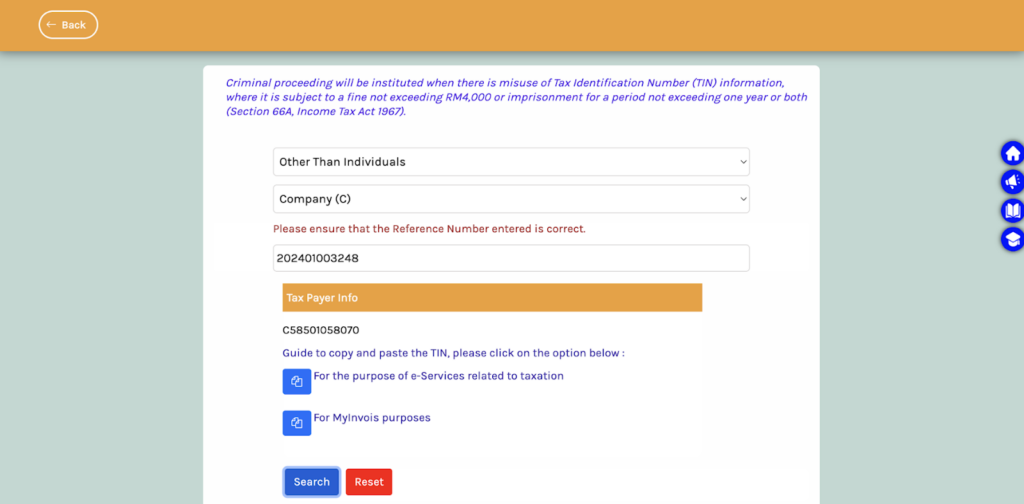
Click Search to run the lookup.
If the search is successful, the TIN will appear in the Tax Payer Info section. You can then use the result for tax documentation, e-Invoice processing, or MyInvois-related work.
t
MyTax portal manual search vs JomeInvoice TIN search function
The MyTax portal is a useful official route for manual verification. It helps users check TIN numbers online step by step. But for daily invoice operations, teams often want a faster workflow inside the same system they already use.
That is where JomeInvoice adds value.
- JomeInvoice includes a built-in feature that allows users to find TIN through:
- NRIC
- Passport
- BRN
This gives users a simpler path during invoice preparation. Instead of switching between multiple systems, they can search for the required TIN directly inside the JomeInvoice portal.
This helps teams:
- Reduce manual checking
- Cut down follow-up time
- Prepare invoices faster
- Improve workflow accuracy
- Support LHDN e-Invoice compliance more efficiently
For businesses handling higher invoice volume, this difference matters. A manual MyTax portal process is useful, but an integrated TIN search inside JomeInvoice can save time every day.
When TIN checks become a daily task
Looking up one TIN at a time on MyTax works well for an occasional check. Finance teams that confirm customer and supplier TINs every day usually want that lookup inside the system that issues the e-invoice. JomeInvoice is e-invoicing middleware, built mainly for larger enterprises, that custom-integrates your existing ERP or accounting system with LHDN’s MyInvois and includes TIN verification. Book a demo to see the TIN search in JomeInvoice.
Last updated: 10 November 2026 | Written by Ng Yinn Sheng, Head of Marketing
References
- MyTax portal (LHDN), where the TIN Search function is found after login: mytax.hasil.gov.my
- LHDN, Individual: Registration. TIN registration through e-Daftar, automatic TIN registration, and the channels for checking a registered TIN: hasil.gov.my
- Income Tax Act 1967 (Act 53), text as at 21 May 2024, Section 66A (tax identification number): hasil.gov.my (official PDF)
- LHDN e-Invoice Specific Guideline, v4.9 (7 September 2026), source of the TIN requirement for parties named in an e-Invoice: hasil.gov.my (official PDF)